


Page 47 - JavaScript
P. 47
<body>
            <h1>Adding an element</h1>
            <p>Hello, World</p>
         </body>


        Note that in order to manipulate elements in the DOM using JavaScript, the JavaScript code must
        be run after the relevant element has been created in the document. This can be achieved by
        putting the JavaScript <script> tags after all of your other <body> content. Alternatively, you can
        also use an event listener to listen to eg. window's onload event, adding your code to that event
        listener will delay running your code until after the whole content on your page has been loaded.

        A third way to make sure all your DOM has been loaded, is to wrap the DOM manipulation code
        with a timeout function of 0 ms. This way, this JavaScript code is re-queued at the end of the
        execution queue, which gives the browser a chance to finish doing some non-JavaScript things
        that have been waiting to finish before attending to this new piece of JavaScript.


        Using console.log()


        Introduction


        All modern web browsers, NodeJs as well as almost every other JavaScript environments support
        writing messages to a console using a suite of logging methods. The most common of these
        methods is console.log().

        In a browser environment, the console.log() function is predominantly used for debugging
        purposes.


        Getting Started


        Open up the JavaScript Console in your browser, type the following, and press Enter:


         console.log("Hello, World!");


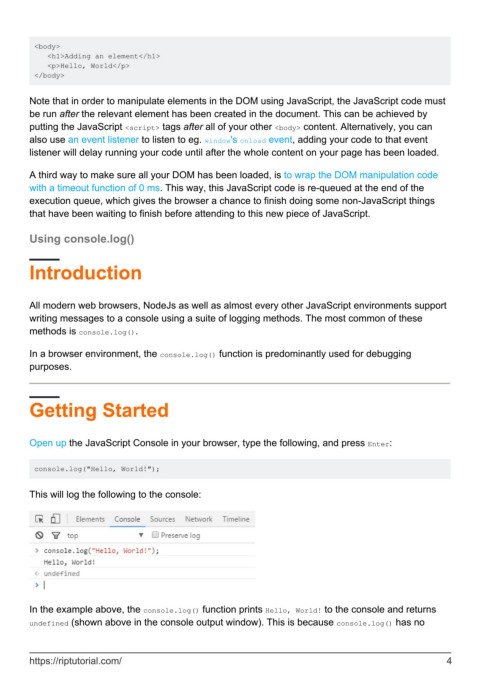
        This will log the following to the console:


        In the example above, the console.log() function prints Hello, World! to the console and returns
        undefined (shown above in the console output window). This is because console.log() has no


        https://riptutorial.com/                                                                                4

